The Core Problem: Server-Side Buffering
Your chatbot is working perfectly. The AI generates a thoughtful response, the backend sends it to the client, and then—nothing visible happens for two full seconds. The user stares at a blinking cursor, wondering if the bot is broken. Then, suddenly, the entire response appears at once.
This is a common issue on WordPress hosting where nginx acts as a reverse proxy for Apache. By default, nginx often uses HTTP/1.0 for these upstream connections, which lacks support for chunked transfer encoding. The result: your server buffers the entire AI response before sending it, destroying the real-time streaming effect that makes modern chatbots feel alive.
You have two paths forward: fix the server configuration (the permanent solution), or design your UI to feel fast while the buffering happens. This post covers the second path—using UX patterns to make buffered responses feel streamed.
Perceived Speed vs. Actual Speed: The Psychology of Waiting
A response that arrives all at once in two seconds feels slower than a response that trickles in character-by-character over four seconds. The human brain interprets gradual output as active work. An instant block of text reads as a delay followed by a data dump.
Optimistic UI patterns exploit this psychology. They give the user immediate feedback that something is happening, reducing perceived latency and building confidence that the system is responsive.
Pattern 1: Optimistic Rendering for User Input
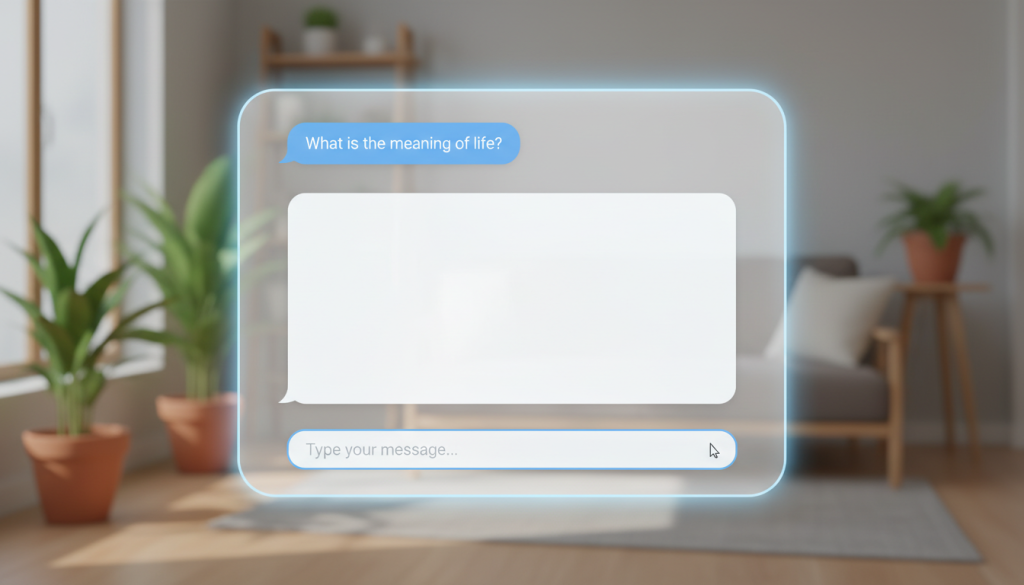
Optimistic rendering means your chatbot UI acts on user input immediately, before the server confirms it. Here’s the sequence:
- A user types a message and hits send.
- Your UI instantly shows the user’s message in the conversation thread (the “optimistic” part).
- The send button changes to a loading state or disappears.
- Seconds later, the AI response arrives from the server and appears in the chat.
Without this pattern, the user’s own message wouldn’t appear until the server acknowledged it, creating a confusing gap. Optimistic rendering closes that gap instantly.
Pattern 2: Masking Latency with Visual Feedback
While the response buffers on your server, use client-side visual feedback to signal that the AI is “thinking.” Since these run in the browser, they appear instantly.
Typing Indicators and Skeleton States
Use simple, universally understood loading animations.
- Typing indicator: A three-dot animation tells the user the AI is composing a response. It’s a small detail that has a huge impact on perceived responsiveness.
- Skeleton states: Show a faded, partial message structure (gray bars for headlines or lines of text) that gets replaced by the real response. Users recognize this pattern from modern web apps as a “loading” state.
Animated Placeholders
You can also animate the container for the incoming message. First, add a `loading` class to the AI message container:
<div class="message ai-message loading"><p>...</p></div>
Next, use CSS to apply a subtle pulse or shimmer animation while the `loading` class is present:
.message.loading { animation: pulse 1.5s infinite; }
@keyframes pulse {
  0% { opacity: 0.6; }
  50% { opacity: 1; }
  100% { opacity: 0.6; }
}
The animation runs locally, giving the impression of active work. When the real response arrives, your JavaScript removes the `loading` class, and the final content appears.
The Permanent Fix: Configure Your Server for True Streaming
While optimistic UI patterns are effective workarounds, they don’t solve the root problem. The best solution is to configure your server to stream the response correctly.
If your server buffers responses because of an nginx proxy, the fix is to enable HTTP/1.1 and disable buffering for the chatbot endpoint. For hosting panels like ServerPilot, RunCloud, or GridPane, you can add a location block to your nginx config:
location ~ /wp-json/pressbot/v1/(agent/)?chat {
  proxy_pass $your_backend;
  proxy_http_version 1.1;
  proxy_buffering off;
}
Replace $your_backend with your actual backend proxy address (check your existing nginx config for the value), then restart nginx. This single change enables true streaming—the response flows to the browser as it’s generated, with no delay.
Choosing Your Strategy
Use optimistic UI patterns when:
You don’t have server access (e.g., on shared or managed WordPress hosting) or are waiting for an admin to apply the server fix. These client-side patterns will immediately improve the user experience.
Fix the server when:
You control your hosting environment. A five-minute nginx configuration change eliminates the problem entirely and delivers a genuinely faster experience.
Combine both for the best results:
Even with a perfectly configured server, optimistic patterns are best practice. Instantly displaying the user’s message and showing a typing indicator are standard features that users now expect from any modern chat application.
Next Steps
If your chatbot responses appear all at once, check if your hosting uses nginx in front of Apache by running `ps aux | grep -E “nginx|httpd”` on your server. If you see both processes, the HTTP/1.1 configuration fix will likely solve the problem. If you’re on a managed platform, contact your hosting provider and ask them to enable HTTP/1.1 streaming for your API endpoints. For a detailed guide, see our documentation on configuring nginx for PressBot streaming.