Take WordPress Administration to Your Phone
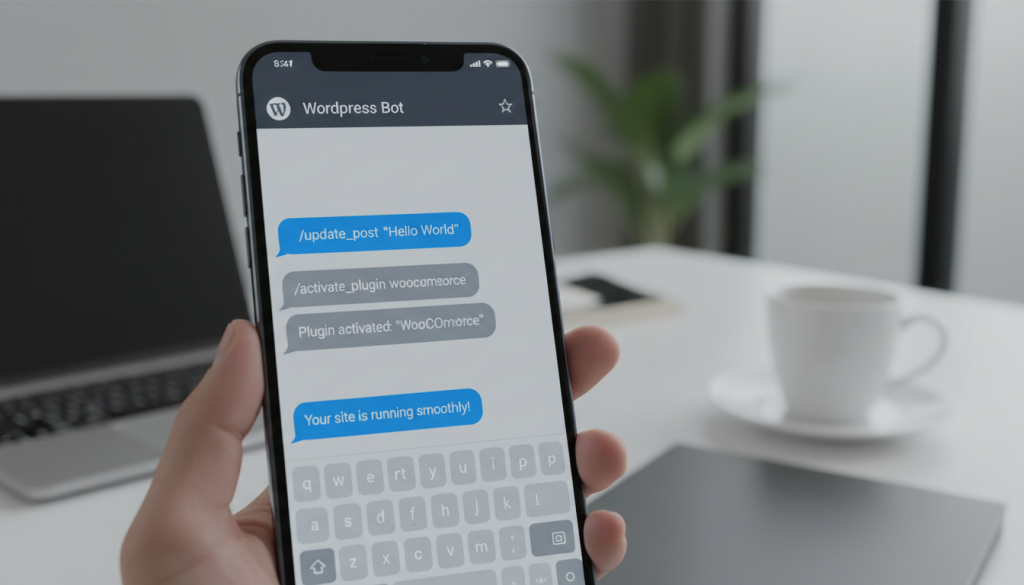
Manage your WordPress site without opening a browser. With PressBot Pro, you connect your site to Telegram and handle everything—posts, plugins, security audits, WooCommerce orders—from your phone in a simple chat interface. The same AI agent and its 60 administrative tools from your WordPress dashboard are available as a Telegram bot.
This lets you respond to urgent tasks while away from your desk, make quick updates on the go, or manage your site through an app you already use daily.
How the Telegram Integration Works
PressBot’s Telegram integration securely connects your WordPress site to the Telegram app. When you send a command to your bot, PressBot processes it on your site using its AI agent and sends the result back to your chat.
You create the Telegram bot yourself (no account signup required beyond Telegram), paste the bot token into PressBot Settings, authorize your Telegram user ID, and register the connection. The setup process is fast and typically takes only a few minutes.
Key Capabilities via Telegram
Every one of PressBot’s 60 admin agent tools is available through Telegram:
- Content management: Create, edit, and delete posts and pages; bulk update multiple posts at once.
- Plugin management: Install, update, activate, deactivate, and delete plugins.
- Media and images: Generate AI images for featured images and add alt text to images in bulk.
- Security audits: Run security checks, find outdated plugins, and review site configuration.
- Comments: Moderate pending comments, mark as spam, and delete comments.
- WooCommerce: Manage products, orders, coupons, and view sales statistics.
- Site configuration: Check site settings, theme options, and scheduled events.
You issue commands in plain English. The bot understands conversational requests, not rigid syntax.
Content Creation Pipeline with Progress Updates
One of the most powerful uses of the Telegram bot is the content creation pipeline. When you ask PressBot to write and publish a post, it runs through an 8-stage process—research, write, critique, categorize, and publish—with real-time progress messages sent to your Telegram chat.
Example workflow:
- You send: “Write a post about WordPress 2026 trends and publish it”
- The bot replies: “Starting content creation pipeline…”
- Progress messages appear one by one:
- “Stage 1: Researching WordPress 2026 trends…”
- “Stage 2: Writing post (2,400 words)…”
- “Stage 3: Critiquing content quality…”
- “Stage 4: Assigning categories and tags…”
- “Stage 5: Publishing post…”
- Final message: “✓ Post published: https://yoursite.com/wordpress-2026-trends/”
Unlike the web dashboard where you preview content, the Telegram workflow publishes directly. This creates a faster process for time-sensitive announcements or routine content creation.
Setting Up Your Telegram Bot
Step 1: Create a Telegram Bot
Open Telegram and search for @BotFather—Telegram’s official bot creation tool. Send the command /newbot, then follow the prompts:
- Give your bot a name (e.g., “My Site Manager”).
- Give your bot a username (must end with “bot”, e.g., “my_site_manager_bot”).
- BotFather will reply with your bot token—a long string of numbers and letters.
Copy this token to your clipboard.
Step 2: Connect the Bot Token in PressBot
In your WordPress admin, go to PressBot → Settings → Telegram Bot. Paste the token from BotFather, then toggle “Enable Telegram Bot” on. Save your settings.
Step 3: Get Your Telegram User ID
Open Telegram and find the bot you just created. Send it any message, like “hello”. The bot will reply with a message stating you are not authorized and will provide your numeric Telegram User ID. Copy this number.
Step 4: Authorize Your Telegram ID
Back in WordPress, in the Telegram Bot settings, paste your Telegram user ID into the “Authorized Users” field. You can add multiple IDs separated by commas if other team members need access. Save again.
Step 5: Register the Webhook
Click the “Register Webhook” button in the Telegram Bot settings. A green checkmark will appear once the webhook is successfully registered. This establishes the secure connection between your site and Telegram.
Step 6: Test It
Send your bot a message on Telegram, such as: “List my draft posts”. The bot will respond using the AI agent, confirming everything is connected.
Security and Limitations
PressBot’s Telegram integration includes multiple security measures:
- Webhook verification: All incoming messages are verified with a secret token before processing.
- User whitelist: Only authorized Telegram user IDs can issue commands.
- Encrypted token storage: Your bot token is encrypted before being saved to the database.
- Rate limiting: A maximum of 10 messages per minute per user prevents abuse.
A few technical limitations to note:
- No streaming: Responses arrive when complete, though long operations send real-time progress messages.
- No conversation history: Each message is independent. The agent has full site context but does not retain memory across messages.
- Requires WP-Cron: Sites with
DISABLE_WP_CRONmust have a real system cron job configured for the bot to function.
When to Use Telegram for WordPress Management
The Telegram bot is most effective for:
- Mobile-first workflows: Quick updates while traveling or away from your desk.
- Urgent tasks: Publishing a time-sensitive post or approving comments immediately.
- Routine checks: “Any plugins need updating?” or “Show me this month’s sales”.
- Bulk operations: “Delete all posts from 2023” or “Add alt text to all untagged images”.
For initial site setup or detailed content editing, the WordPress dashboard is more suitable. For ongoing management and quick actions, Telegram is fast and efficient.
Get Started with Telegram Management
If you’re a PressBot Pro user, enable the Telegram integration in your settings to connect your bot. If you are new to PressBot, install the plugin and follow the Getting Started wizard to configure your AI provider (Claude for agent performance, Gemini for cost-effective options).
For detailed setup instructions and troubleshooting, visit PressBot → Getting Started in your WordPress admin.