Find WordPress Vulnerabilities Before Attackers Do
A single misconfiguration—a forgotten debug mode, a weak admin password, an unpatched plugin—is all an attacker needs. Because WordPress is a popular target, even well-maintained sites can have hidden vulnerabilities. A security audit finds these weak points before they are exploited.
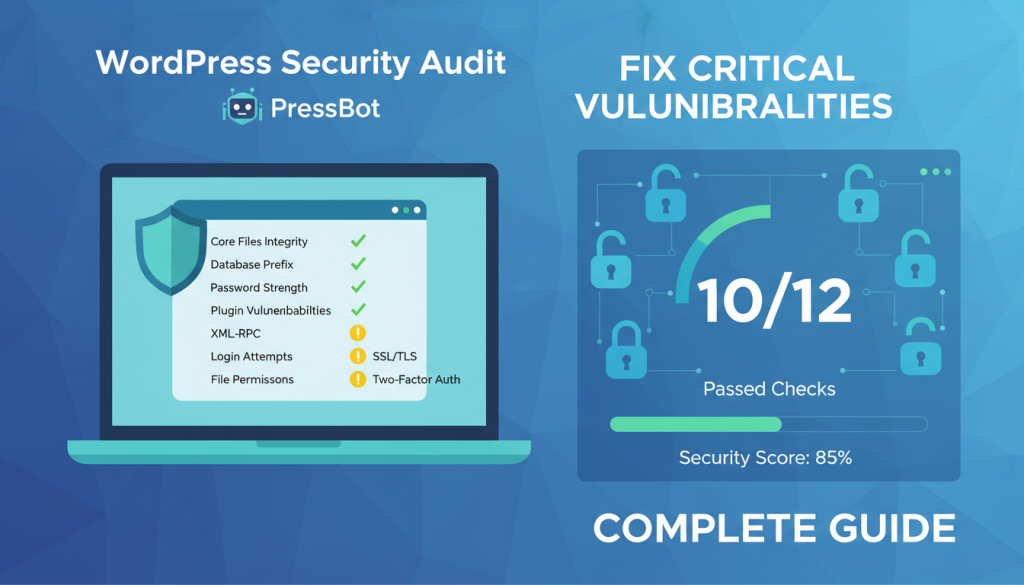
PressBot’s admin agent includes a security audit tool that runs 12 checks across your WordPress installation. Instead of manually reviewing settings or installing separate security plugins, you run a complete audit through natural language conversation and get a report organized by severity.
How to Run a Security Audit in PressBot
PressBot’s security audit is part of the admin agent, available across your WordPress dashboard. Here’s how to access it:
- Navigate to any WordPress admin page (Dashboard, Posts, Plugins, etc.).
- Open the PressBot chat interface.
- Type a command like: “Run a security audit” or “Check my site’s security”.
- The agent executes the audit and returns a report organized by severity level.
The agent shows real-time progress as it checks your site. Once complete, you will see which checks passed and which flagged issues that require attention.
Understanding the 12 Security Checks
PressBot’s security audit evaluates 12 distinct areas of your WordPress configuration. Here is what each check validates:
1. File Permissions
Checks for overly permissive file and directory settings (e.g., 777). Incorrect permissions expose your site to unauthorized modification.
2. Debug Mode
Confirms WP_DEBUG is disabled on a live site. When active, it leaks server paths and other sensitive data through public error messages.
3. SSL Certificate
Confirms your site uses HTTPS and has a valid SSL certificate. Unencrypted connections expose login credentials and visitor data to interception.
4. Admin Username
Audits whether your primary admin account uses a weak or default username like “admin”. Default usernames make brute-force attacks easier.
5. WordPress Version
Checks if you are running the latest version of WordPress core. Outdated versions contain known vulnerabilities that attackers actively exploit.
6. Plugin Updates
Identifies plugins with available updates. Outdated plugins are one of the most common entry points for attackers.
7. Theme Updates
Verifies your active theme is current. Outdated themes can contain security flaws or compatibility issues with WordPress core.
8. Database Prefix
Checks whether your WordPress database uses the default “wp_” prefix. A custom prefix makes SQL injection attacks less predictable.
9. Inactive Plugins
Flags installed but inactive plugins. Even when disabled, their files remain on your server and can be exploited if they contain vulnerabilities.
10. User Roles & Permissions
Audits user accounts and their assigned roles. Excessive privileges or unused admin accounts increase your site’s attack surface.
11. File Integrity
Compares your core WordPress files against the official repository to detect modifications, which can indicate malware or unauthorized changes.
12. Security Headers
Verifies that security-related HTTP headers (like X-Frame-Options and Content-Security-Policy) are configured to prevent common browser-based attacks.
Severity Levels Explained
Each check result is assigned a severity level to help you prioritize fixes:
Critical
Represents an active, high-risk vulnerability that can lead to immediate site compromise. Fix these issues immediately. Examples: debug mode enabled on a live site, no SSL certificate, or a default “admin” username.
High
Increases attack risk significantly. While not an immediate breach, these should be fixed within days. Examples: outdated WordPress core, plugins with known exploits, or improper file permissions.
Medium
A best-practice violation or configuration weakness that hardens your site’s security. Address these to reduce your overall attack surface. Examples: default database prefix, inactive plugins, missing security headers.
Example Audit Report
Imagine you ask PressBot: “Run a security audit on my site.”
The agent returns a report like this:
- CRITICAL: Debug mode is enabled (WP_DEBUG = true)
- CRITICAL: Admin user is still named “admin”
- HIGH: WordPress 7.5 detected; version 7.8 is available
- HIGH: Plugin “Advanced Custom Fields” has a security update available
- MEDIUM: Database prefix is “wp_” (default)
- MEDIUM: 3 inactive plugins remain installed
- PASS: SSL certificate is valid
- PASS: File permissions are appropriately restrictive
You can then ask the agent for help: “Disable debug mode and update all plugins.” The agent guides you through the changes, asking for confirmation before executing system-level modifications.
Next Steps After Your Audit
Once you have your audit findings, use the agent to remediate the issues. You can ask it to:
- Update WordPress core and all plugins
- Change your admin username
- Disable debug mode
- Delete inactive plugins
- Review and modify file permissions
The agent handles these tasks through conversation, confirming any destructive actions before proceeding. Security audits aren’t a one-time event—schedule regular audits (monthly or quarterly) to catch new vulnerabilities as they emerge.
Run your first security audit now. Need to set up PressBot first? See our Claude or Gemini connection guides. Open the PressBot agent in your WordPress dashboard and ask it to run a security check. Address any critical findings first, then systematically work through the high and medium-severity items.